Wednesday, July 20, 2022

Membuat Bootable UFD Installer (Multi) OS Bagian ke-2: Ventoy


Biasanya satu image ISO / OS hanya bisa ditulis ke satu UFD. Bagaimana kalau kita mau image-image tersebut dalam satu UFD sekaligus? Ada artikel yang pernah dipublish penulis  di tahun 2018, 'Creating Bootable USB OS Installer' yang membahas aplikasi multisystem. Kali ini penulis akan membahas aplikasi sejenis yaitu Ventoy:

Ventoy
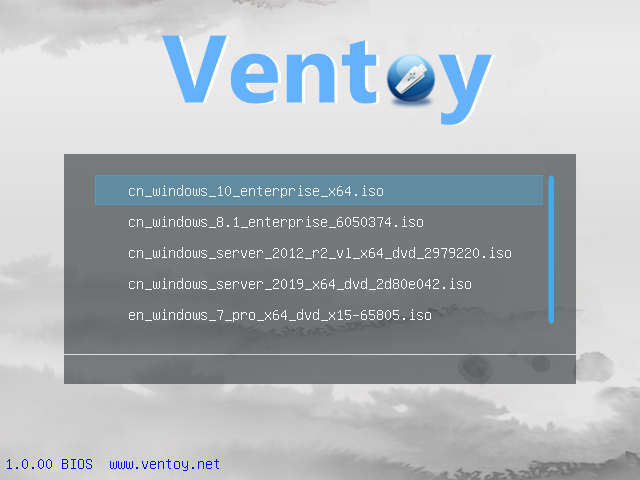
Berikut caranya:
  1. Download Aplikasinya & ekstrak dalam folder pilihan anda
  2. Jalankan  aplikasinya, 
    1. gunakan ini di terminal dalam folder aplikasinya:
      $sudo ./VentoyGUI.x86_64
    2. Pilih USB flashdisk  (UFD) yang akan digunakan Multi ISO Installer
    3. Pilih tipe partisi. MBR untuk PC yang hanya memakai BIOS  (Non UEFI), GPT untuk PC baru)
    4. Pilih Install


  3. Aplikasi akan membuat 2 partisi/volume di UFD Anda, pertama untuk boot (VTOYEFI), ke-2 untuk menyimpan image OS (Ventoy).
  4. Copy image OS Anda (*.iso) ke Partisi ke-2 (Ventoy)
  5. Boot ke USB
Anda dapat menempatkan file ISO sebanyak mungkin di partisi ke-2 karena prosesnya cuma cut/copy & paste sederhana, tidak perlu konfigurasi lebih lanjut.

ISO Image yang penulis uji:
  1. Image / Installer OS Linux: Linux Mint, Linux Mint LMDE, Ubuntu, POP_OS!, Manjaro & Chimera OS. Tentunya akan bisa berfungsi dengan image / installer OS Linux lainnya di luar sana.
  2. Image / Installer OS Windows: Windows 7 / 8.1 / 10. Tiny10 (Windows 10 Enterprise LTSC minimal)  adalah pengecualian, dia lebih berfungsi sebagai image tunggal (Anda bisa menggunakan multisystem atau balenaEtcher untuk menulis ISO ke UFD)
  3. ISO Utilitas: Parted Magic, UBCD, UBCD Live. Beberapa utilitas seperti G4L (HDD Cloning) dan ISO Antivirus populer, menolak untuk boot


Creating Bootable UFD (Multi) OS Installer Part 2: Ventoy


Usually one ISO (OS) image can only be written to one UFD. What if we want these images in one UFD at once? There is an article published by the author in 2018, 'Creating Bootable USB OS Installer' which discussed application called multisystem. This time the author will discuss similar application, Ventoy

Ventoy

Here's how:

  1. Download the App & extract it in your preferred folder
  2. Run the app, 
    1. use this on terminal inside the extracted app folder:
      $sudo ./VentoyGUI.x86_64
    2. Choose the USB flashdisk  (UFD) to be used for Multi ISO Boot. 
    3. Choose the partition type (MBR for older/BIOS only PC & GPT for newer)
    4. click Install


  3. It will then create 2 partitions/volumes in your UFD, 1st for boot (VTOYEFI), 2nd for OS images space (Ventoy).
  4. Copy your OS images (*.iso) to 2nd Partition  (Ventoy)
  5. Boot to USB
You may put as many ISO in the 2nd partition as the process is a simple copy/cut & paste, no need further configuration.

Tested with:
  1. Linux OS images / installer: Linux Mint, Linux Mint LMDE, Ubuntu, POP_OS!, Manjaro & Chimera OS. Surely it will work with any other Linux OS images / installer out there.
  2. Windows OS images / installer: Windows 7 / 8.1 / 10. Tiny10 (Custom to Minimal / Trimmed Windows 10 Enterprise LTSC) was the exception, it rather work alone (you might want to use multisystern or balenaEtcher to write the image to UFD)
  3. Utilities ISO: Parted Magic, UBCD, UBCD Live. Again, some utility like G4L (HDD Cloning) and popular Antivirus ISO, refused to boot


Creating Bootable UFD OS Installer Part 1: balenaEtcher

As computer enthusiast, we really want to try various computer OS for various reasons, whether we want to upgrade, are bored, disappointed, or are looking for new challenges. On the internet there are many computer OS images that can be downloaded, write to CD/UFD and to try them immediately (Live CD/UFD for various Linux distributions) or just as an installation media (MacOS & Windows). 

On Linux apart from internal utility from the OS such as USB Image Writer from Linux Mint, there are few applications to help you write OS images such as balenaEtcher and Ventoy

balenaEtcher


balenaEtcher or simply Etcher Is a single ISO image flasher/writer application to UFD AND ALSO TO MEMORY CARDS for Linux/MacOS/Windows. This application is an alternative to the Rufus utility on Windows which functions more or less the same.
Here's How:
  1. Download the app & extract it in your preferred folder
  2. use this on terminal inside the extracted app folder:
    $sudo chmod 777 *.AppImage
  3. Run the AppImage file 
    1. eg. $./balenaEtcher-1.7.9-x64.AppImage 
    2. Select Image to write, device to write on to, flash!
    3. You can now boot the UFD
Reference: https://www.balena.io/etcher/

Membuat Bootable UFD Installer OS Bagian ke-1: balenaEtcher

Sebagai pengguna antusias komputer, kita sangat ingin mencoba berbagai OS komputer karena berbagai alasan, entah ingin mengupgrade, bosan, kecewa, atau sedang mencari tantangan baru. Di internet banyak sekali image OS komputer yang bisa didownload, ditulis ke CD/UFD dan langsung dicoba (Live CD/UFD untuk berbagai distro Linux) atau hanya sebagai media instalasi (MacOS & Windows).

Di Linux selain aplikasi internal dari OS seperti USB Image Writer dari Linux Mint, ada beberapa aplikasi untuk membantu Anda menulis image OS seperti balenaEtcher dan Ventoy 

balenaEtcher


balenaEtcher atau Etcher adalah aplikasi flasher/penulis image OS tunggal ke UFD DAN JUGA KE KARTU MEMORY untuk Linux/MacOS/Windows. Aplikasi ini adalah alternatif dari utility Rufus di Windows yang fungsinya kurang lebih sama.
Berikut Caranya:
  1. Download aplikasinya & ekstrak di folder pilihan Anda
  2. gunakan ini di terminal di dalam folder aplikasi yang diekstraksi:
    $sudo chmod 777 *.AppImage
  3. Jalankan fils AppImage 
    1. contoh: $./balenaEtcher-1.7.9-x64.AppImage 
    2. Pilih Image untuk ditulis, perangkat yang akan ditulis, flash!
    3. Boot ke UFD
Referensi: https://www.balena.io/etcher/

Sunday, July 17, 2022

Mid-2022!

 Now I have the time to post few things to my blog. Hope this would help me to recollect these things later on

<bahasa indonesia>
Sekarang saya punya waktu untuk mem-posting beberapa hal ke blog saya. Semoga ini bisa membantu saya untuk mengingat hal-hal ini nantinya

Mematikan Windows Fast-Start HDD Lock dari Linux

 Jika Anda melakukan dual-boot Linux Anda dengan Windows 8.x / 10 (biasanya untuk gaming), Anda mungkin mengalami bahwa Anda tidak dapat menulis atau memuat/mount drive NTFS Anda (baik yang digunakan sebagai sistem atau data saja). Ini biasanya disebabkan oleh Windows Fast-Start HDD Lock

Solusi Umumnya adalah Nonaktifkan Windows Fast-Start dari Windows. Ini mengharuskan Anda untuk boot ke Windows, nonaktifkan fast-start dari Settings - Power Option - Choose what the power buttons do - Change settings that are currently unavailable - Shutdown settings - hilangkan centang Turn on fast startup - full shutdown Windows - reboot ke Linux

Jika gagal maka Anda dapat memaksa untuk Mematikan Windows Fast-Start HDD Lock dari Linux anda.Ada perintah ntfsfix (bagian dari paket ntfs-3g), yang memperbaiki beberapa inkonsistensi NTFS, mengatur ulang file jurnal NTFS dan menjadwalkan a Pemeriksaan konsistensi NTFS untuk boot pertama ke Windows. Ini mungkin dapat merusak instalasi Windows Anda, jadi tidak disarankan untuk drive sistem

Namun ini dapat berguna dalam beberapa kasus.Misalnya, jika Anda tidak lagi menginstal Windows 10 atau 8, tetapi partisi NTFS dibiarkan dalam keadaan hibernasi (Terkunci).Dalam kasus tersebut, Anda dapat menggunakan:

sudo ntfsfix /dev/<NTFS_partition> (misalnya /dev/sdb1)

untuk membuat partisi dipasang dengan akses baca/tulis penuh.

sumber: https://www.linuxuprising.com/2019/01/fix-windows-10-or-8-partition-mounted.html

How to Manually Turn-Off Windows Fast-Start HDD Lock from Linux

If you dual-boot your Linux with Windows 8.x/10 (usually for gaming), you may experienced that you cannot write or possibly your NTFS drive whether they used as system or data only. This usually caused by Windows Fast-Start HDD Lock 

Current solution is to Disable Windows Fast-Start from within Windows. It requires you to boot to Windows, turn-off the fast-start from Settings - Power Option - Choose what the power buttons doChange settings that are currently unavailableShutdown settings - uncheck the Turn on fast startup - full shutdown Windows - reboot to Linux

Should it failed then you can force to Turn-Off Windows Fast-Start HDD Lock  from your Linux. There is the ntfsfix command (part of the ntfs-3g package), which repairs some NTFS inconsistencies, resets the NTFS journal file and schedules a NTFS consistency check for the first boot into Windows. This might corrupt your Windows installation though, so it's not recommended for system drive

However it can be useful in some cases. For example, if you're no longer have Windows 10 or 8 installed, but a NTFS partition was left in a hibernated state (Locked). In such cases, you could use: 

sudo ntfsfix /dev/<NTFS_partition> (for example /dev/sdb1) 

to get the partition to mount with full read/write access.

source: https://www.linuxuprising.com/2019/01/fix-windows-10-or-8-partition-mounted.html


Friday, October 23, 2020

Cara Mendapat Game Gratis Tiap Minggu

Beneran. Ini bukan spam. English version

Anda bisa mendapatkan setidaknya satu game Gratis setiap minggu dari Epic Game Store dan Indie Gala Showcase

Di Epic Game Store https://www.epicgames.com, gamenya untuk Windows dan beberapa kompatibel dengan WINE. Client Epic Game Store (EGS) kompatibel dengan Linux/WINE, Anda dapat menginstalnya dengan Lutris. Setelah pemasangan, Anda dapat mengklaim satu atau dua game AAA atau indie pilihan mereka, gratis setiap minggu.

Adapun saat ini hampir 60% dari game ini DRM-free (Anda dapat memainkannya tanpa menjalankan klien EGS) & kompatibel dengan WINE, Selebihnya kompatibel dengan WINE tetapi hanya dapat dijalankan dari klien EGS (GTA V dari Rockstar adalah salah satunya)

Di Indie Gala https://freebies.indiegala.com, game-gamenya DRM-free, beberapa hanya untuk Windows, beberapa kompatibel dengan WINE. Sebagian besar game lama tetapi yang lebih penting adalah gratis untuk diunduh

Game gratis minggu ini

https://www.epicgames.com/store/en-US/product/layers-of-fear-2/home#

https://www.epicgames.com/store/en-US/product/costume-quest-2/home

https://freebies.indiegala.com/copperbell/?ref=igb

Atau Anda dapat memeriksa IndieGameBundles https://www.indiegamebundles.com/ mingguan untuk berbagai game gratis.

How to Get Free (Linux) Games Every Week

No, Really. This is not a spam. Indonesian version
You can get at least one Free games every week from Epic Game Store and Indie Gala Showcase

On Epic Game Store https://www.epicgames.com, games are for Windows. Epic Game Store (EGS) Client is WINE compatible, you can install it with Lutris. After install you can claim one or two free AAA or indie games weekly.
As for today nearly 60% of the games are DRM-free (means that you can play them without running the EGS client) & WINE compatible, For the rest are WINE compatible but can only be run from EGS client (Rockstar's GTA V is one of them)

On Indie Gala
https://freebies.indiegala.com, games are DRM-free, some Windows only, some WINE compatible. Mostly old titles but more important that they are free to download

This week's free games
https://www.epicgames.com/store/en-US/product/layers-of-fear-2/home#

https://www.epicgames.com/store/en-US/product/costume-quest-2/home

https://freebies.indiegala.com/copperbell/?ref=igb

Alternatively you can check IndieGameBundles https://www.indiegamebundles.com/ weekly for various free games.

Thursday, October 22, 2020

Windows, DRM-Free, Portable, WINE, non-DRM-Free Platform

Saya mengedit/mengupdate posting lama ini bersama Seri gaming Linux saya. English version

Pada judul adalah 5 tag yang saya pasang pada game milik saya (bisa dimainkan) yang pada dasarnya adalah game Windows DRM-Free yang dapat dimainkan di mana saja pada Windows atau pada Linux melalui WINE, setelah instalasi satu kali dari platform non-DRM-free (Steam, Epic, Uplay, Origin dan Bethesda). Karenanya saya bahkan menginstal mereka dalam folder khusus di drive yang berbeda.

Berikut daftarnya:

Di Steam:

  • 10 Second Ninja X
  • Aegis Defenders
  • Afterfall InSanity
  • Batman Arkham Asylum GOTY
  • BEEP
  • Ben There, Dan That!
  • Blackguards
  • Blackguards 2
  • Blood Bowl Chaos Edition
  • Broforce The Expendables Missions
  • Chaos Domain
  • Crayon Physics Deluxe
  • Dead State
  • Deiland
  • EnemyMind
  • Enslaved
  • Evil Genius
  • Fieldrunners
  • Gish
  • Grimm
  • Ghost Ship Aftermath
  • IL 2 Sturmovik 1946
  • Jamestown
  • Killer Is Dead
  • Legendary
  • Lone Survivor
  • Lost Daughter
  • mcpixel
  • Melissa K and the Heart of Gold
  • Mortal Kombat Arcade Kollection
  • Neighbours from Hell
  • Neighbours from Hell 2
  • Neon Prism
  • Nosferatu The Wrath of Malachi
  • Offspring Fling!
  • Omikron
  • Rusty Lake Roots
  • Samorost 2
  • Serious Sam Classic The First Encounter
  • Serious Sam Classic The Second Encounter
  • Showdown Bandit
  • Space Hack
  • Star Wars Battlefront II
  • Super Panda Adventures
  • Tharsis
  • The Basement Collection
  • The Binding Of Isaac
  • The Spiral Scouts
  • Time Gentlemen, Please!
  • TrackMania Nations Forever
  • TRAUMA
  • Sin Gold
  • Armillo
  • Police Quest Collection
Steam-DOSBox (Game DOS)
  • BloodNet
  • Dark Forces
  • Realms of the Haunting
  • Rex Nebular and the Cosmic Gender Bender
  • System Shock Classic
  • XCom UFO Defense
  • Shadow Warrior Original
Steam-Scummvm (Game Adventure Point & Click dengan Engine Scummvm)
  • Sam and Max Hit The Road

Di Epic (game gratis mingguan):
  • ApeOut
  • Celeste
  • Close To The Sun
  • Darksiders 2
  • Figment
  • For The King
  • Hello Neighbor
  • Hob (with WINE 3.16)
  • Hyper Light Drifter
  • InnerSpace
  • Mutazione
  • Overcooked
  • Sherlock Holmes, Crimes And Punishments
  • Sludge Life
  • Sundered
  • Totally Accurate Battle Simulation
  • Tormentor X Punisher
  • Crashland
  • Horace
  • Stanley Parable
  • The Wolf Among Us
  • Aztez
  • Gonner
  • Anodyne2
  • Stranger Things 3
  • Hue
  • Lifeless Planet
  • Pathway
  • The Escapist 2
  • Wilmot's Warehouse
  • Enter The Gungeon
  • Three Out of 10
  • Water Tastes Like Wine
  • The Alto Collection
  • Stick It To The Man
  • Roller Coaster Tycoon 3
  • 20xx
  • Samurai Shodown Neo Geo Collection (dem-free setelah memainkannya 1x dan terhubung ke Epic Store Online)

Di Uplay (drm-free sebelum update di tahun 2019)
  • Beyond Good and Evil
  • Prince of Persia Sands of Time
  • Tom Clancy's Splinter Cell
  • Rayman Origins

Di Origin (DOS game)
  • Populous
  • SimCity 2000 SE
  • Wing Commander III

Di Bethesda.net
  • Arx Fatalis
  • The Elder Scroll I Arena
  • The Elder Scroll II Daggerfall
  • The Elder Scroll III Morrowind
  • Quake I
  • Quake II
  • Quake III

Game DRM-Free

Apa itu Game DRM-Free? English version

Untuk tahu lebih jauh berikut definisi DRM menurut Wikipedia:

Peralatan Manajemen Hak digital (Digital Rights Management (DRM) adalah seperangkat teknologi kontrol akses untuk membatasi penggunaan perangkat keras berpemilik dan karya hak cipta.Teknologi DRM mencoba mengontrol penggunaan, modifikasi, dan distribusi karya berhak cipta (seperti perangkat lunak dan konten multimedia), serta sistem di dalam perangkat yang menerapkan kebijakan ini.

Pada dunia game di PC atau PC Game, DRM sering disebut sebagai copy-protection. Ada bermacam-macam copy protection yang ada sejak era PC Game dimulai (1980an),  

  • proteksi fisik media (laser hole atau hidden file/sector pada floppy disk atau CDROM),  
  • proteksi yang mengacu ke buku petunjuk/manual (misalnya 'masukkan kata dari halaman (x) paragraf (y) dan kata ke-(z)')
  • proteksi serial number unik (seperti Windows 95/98)
  • proteksi one-time online/phone registration (seperti Windows 7 ke atas)
  • proteksi periodik/selalu online (seperti DVD game dengan sistem Denuvo)
  • proteksi melalui client ekosistem gaming (Steam/Epic/Uplay/Origin)

Game DRM-Free secara bebas diterjemahkan sebagai game yang dijual tanpa menggunakan DRM atau copy protection. Dipopulerkan oleh perusahaan distributor game GOG.com, DRM-Free Game adalah sebuah konsep bahwa game harus bisa dimiliki secara fisik tanpa harus tergantung pada pihak distributor (kecuali waktu mendownloadnya), sehingga bisa dipindah (diinstall/dicopy) sesukanya selama kita memang sudah memiliki hak atas game tersebut. DRM-Free Game adalah anti-tesis dari kebutuhan bahwa game harus diproteksi untuk memastikan hak ciptanya terjaga. 

Tidak seperti game dengan DRM yang terasa seperti kita memiliki hak guna pakai/sewa (kecuali kita punya media fisik dan tidak butuh online untuk menggunakannya), DRM-Free membuat kita seperti memiliki hak milik

Lebih lanjut, ternyata pada ekosistem gaming seperti Steam, Epic, Uplay, Origin, dan Bethesda tenyata 'diselundupkan' game-game DRM-Free karena sebagian pengembang game merasa tidak perlu menambahkan DRM untuk game mereka

DRM-Free Games

What are DRM-Free Games?
To find out more, the following is the definition of DRM according to Wikipedia:
Digital rights management (DRM) tools or technological protection measures (TPM) are a set of access control technologies for restricting the use of proprietary hardware and copyrighted works. DRM technologies try to control the use, modification, and distribution of copyrighted works (such as software and multimedia content), as well as systems within devices that enforce these policies.
In the world of PC games, DRM is often referred to as copy-protection. There are various copy protection that have existed since the PC Game era began (1980s),
  • physical media protection (laser hole or hidden file / sector on a floppy disk or CDROM),
  • protection that refers to the manual / manual (for example 'insert word from page (x) paragraph (y) and word (z)')
  • unique serial number protection (such as Windows 95/98)
  • one-time online / phone registration protection (such as Windows 7 and above)
  • periodic / always online protection (such as DVD games with Denuvo systems)
  • protection via the gaming ecosystem client (Steam / Epic / Uplay / Origin)
DRM-Free Games is freely translated as games that are sold without the use of DRM or copy protection. Popularized by game distributor company GOG.com, DRM-Free Game is a concept that games should be physically owned without having to depend on the distributor (except when downloading them), so they can be moved (installed / copied) at will as long as we already have the rights. over these games. DRM-Free Game is the anti-thesis of the need that games must be protected to ensure that they are copyright protected.

Unlike games with DRM, which feel like we have lease rights (unless we have physical media and don't need to be online to use it), DRM-Free makes us feel like we have ownership rights.

Furthermore, it turns out that in gaming ecosystems such as Steam, Epic, Uplay and Origin, there are DRM-Free games smuggled-in because some game developers feel that they don't need to add DRM to their games.

Linux Gaming Series

I'm starting Linux Gaming related series on my blog. It would be bilingual English-Indonesia so I can reach more reader / audience and practice my English

I hope you enjoy! 

Friday, June 5, 2020

Windows, DRM-Free, Portable, WINE, non-DRM-Free Platform

I edited this post this along my Linux gaming Series.

On title are 5 tags that I put on games I owned (tested & played) which basically is DRM-free Windows games which is can be played anywhere in Windows or Linux via WINE, after it's one time installation from a non-DRM-free platforms (Steam, Epic, Uplay, Origin and Bethesda). Hence I even installed them in a special folder in different drive.

Here is the list:
On Steam:
  • 10 Second Ninja X
  • Aegis Defenders
  • Afterfall InSanity
  • Batman Arkham Asylum GOTY
  • BEEP
  • Ben There, Dan That!
  • Blackguards
  • Blackguards 2
  • Blood Bowl Chaos Edition
  • Broforce The Expendables Missions
  • Chaos Domain
  • Crayon Physics Deluxe
  • Dead State
  • Deiland
  • EnemyMind
  • Enslaved
  • Evil Genius
  • Fieldrunners
  • Gish
  • Grimm
  • Ghost Ship Aftermath
  • IL 2 Sturmovik 1946
  • Jamestown
  • Killer Is Dead
  • Legendary
  • Lone Survivor
  • Lost Daughter
  • mcpixel
  • Melissa K and the Heart of Gold
  • Mortal Kombat Arcade Kollection
  • Neighbours from Hell
  • Neighbours from Hell 2
  • Neon Prism
  • Nosferatu The Wrath of Malachi
  • Offspring Fling!
  • Omikron
  • Rusty Lake Roots
  • Samorost 2
  • Serious Sam Classic The First Encounter
  • Serious Sam Classic The Second Encounter
  • Showdown Bandit
  • Space Hack
  • Star Wars Battlefront II
  • Super Panda Adventures
  • Tharsis
  • The Basement Collection
  • The Binding Of Isaac
  • The Spiral Scouts
  • Time Gentlemen, Please!
  • TrackMania Nations Forever
  • TRAUMA
  • Sin Gold
  • Armillo
  • Police Quest Collection
Steam-DOSBox Based (DOS games)
  • BloodNet
  • Dark Forces
  • Realms of the Haunting
  • Rex Nebular and the Cosmic Gender Bender
  • System Shock Classic
  • XCom UFO Defense
  • Shadow Warrior Original
Steam-Scummvm Based
  • Sam and Max Hit The Road

On Epic (all from weekly free games):
  • ApeOut
  • Celeste
  • Close To The Sun
  • Darksiders 2
  • Figment
  • For The King
  • Hello Neighbor
  • Hob (with WINE 3.16)
  • Hyper Light Drifter
  • InnerSpace
  • Mutazione
  • Overcooked
  • Sherlock Holmes, Crimes And Punishments
  • Sludge Life
  • Sundered
  • Totally Accurate Battle Simulation
  • Tormentor X Punisher
  • Crashland
  • Horace
  • Stanley Parable
  • The Wolf Among Us
  • Aztez
  • Gonner
  • Anodyne2
  • Stranger Things 3
  • Hue
  • Lifeless Planet
  • Pathway
  • The Escapist 2
  • Wilmot's Warehouse
  • Enter The Gungeon
  • Three Out of 10
  • Water Tastes Like Wine
  • The Alto Collection
  • Stick It To The Man
  • Roller Coaster Tycoon 3
  • 20xx
  • Samurai Shodown Neo Geo Collection (dem-free after connect to Epic on first play)

On Uplay (limited time. after end of 2019 is not drm-free anymore)
  • Beyond Good and Evil
  • Prince of Persia Sands of Time
  • Tom Clancy's Splinter Cell
  • Rayman Origins

On Origin (DOS based, run on DOSBox)
  • Populous
  • SimCity 2000 SE
  • Wing Commander III
On Bethesda.net
  • Arx Fatalis
  • The Elder Scroll I Arena
  • The Elder Scroll II Daggerfall
  • The Elder Scroll III Morrowind
  • Quake I
  • Quake II
  • Quake III


Monday, January 15, 2018

Creating Bootable USB OS Installer

This is an old stuff but I decided to write this as this is one of indispensable  utility for me for a long time.
It allows you to have multiple OS installer in an USB flashdisk. Although you can have several Android and Linux installer in one flashdisk, it only allowed 1 version of Windows.
The official site:
https://sourceforge.net/projects/multisystem/

Watch out with the language, since this app is originally French, but overall is very good.

For easier method of install (Ubuntu derived / PPA) you can use:
$ sudo apt-add-repository 'deb http://liveusb.info/multisystem/depot all main' 
$ wget -q -O - http://liveusb.info/multisystem/depot/multisystem.asc | sudo apt-key add - 
$ sudo apt-get update
$ sudo apt-get install multisystem


Source:
https://www.unixmen.com/create-multiboot-usb-ubuntu-using-multisystem/


Compressing PDF File using (ghost)script

Dealing with Big PDF File can be pain in the a** especially when using slow internet connection or limited space on server.
Thus I've come across script on make things easier. Here's the script:
$ ghostscript -sDEVICE=pdfwrite -dCompatibilityLevel=1.4 -dPDFSETTINGS=/ebook -dNOPAUSE -dQUIET -dBATCH -sOutputFile=output.pdf input.pdf

You can get more explanation at:
https://www.internalpointers.com/post/compress-pdf-file-ghostscript-linux
or
https://gist.github.com/firstdoit/6390547

You might also want to check on pdftk and pdfchain on extracting and combining pdf

Wednesday, April 22, 2015

Access Microsoft Onedrive in Linux

Onedrive is a personal cloud storage from Microsoft (similar to Google Drive or Dropbox). It gave you fair amount of space to put your (un)important stuff on-line and have your mobile device access it later on.
Based on these instructions I'm able to connect to Microsoft Onedrive from Linux Mint 17 using onedrive-d . I use them with slight modifications as follow,
  1. The first step to installing onedrive-d is to open a terminal window and clone the source code from git using the following command:
    git clone https://github.com/xybu92/onedrive-d.git
  2. If you don’t have “git” installed, you can install it with the command:
    sudo apt-get install git
  3. Now change directory into the onedrive-d folder:
    cd onedrive-d
  4. Run the installation script:
    sudo ./install.sh
  5. After installation you should run:
    sudo onedrive-pref
  6. Answer with default values. In the end you have ~/OneDrive folder (at your home folder)
  7. To activate run:
    sudo onedrive-d start
Now you can access Onedrive as your local folder

Wednesday, April 1, 2015

A Reason to Move

Not Into Linux Yet? Gaming hold you back? Here's a reason to move to Linux,

Humble Indie Bundle 14
The Humble Indie Bundle is back with 7 cross-platform games available DRM-free and on Steam!

Oh, did I tell you before for other reasons? Here's a few other:
  • The OS is free
  • Relatively secure, virus-free compared to W*****s. You can read this for reference
  • You're tired of hard disk defrags,  antivirus updates, wait (ages) while OS updates, always need restarting for stabilty
  • Came with essential apps (internet, office), free
  • Games are staying strong (Steam.com, GOG.com, Humblebundle.com)
  • Hunger for new challenges or fulfilling any curiosity on computing
  • or any of you can add more to the list?

Change of Name

Changed my blog name to reflect more of the content. I don't play that much though, but still am.

Wednesday, March 25, 2015

Internet Connection Sharing on Linux Mint 17.1

I've read,  tried and failed several times on this. At first I thought it might be a snap using howtos tutorials scatter around internet. But it turn out to be no general solution to this. The keywords are gateway, ip masquarade, and off course, Internet Connection Sharing on Linux.

Here's a working solution that works using Linux Mint 17.1 and these configuration/setup
  1. You have cable/ADSL internet connection that need to be shared to a closed network at home/office.  
  2. A small server with 2 network cards, one connected to the cable/ADSL router/modem and one to the home/office network
  3. Have a working connection from server that you can connect to router/modem in one connection and internal network for another (you can use ping to their addresses respectively)  
  4. Here's my sample of ifconfig result from the server:

    eth0      Link encap:Ethernet  HWaddr xx:xx:e3:2f:dc:87 
              inet addr:192.168.1.100  Bcast:192.168.1.255  Mask:255.255.255.0
              inet6 addr: fe80::dafe:e3ff:fe2f:dc87/64 Scope:Link
              UP BROADCAST RUNNING MULTICAST  MTU:1500  Metric:1
              RX packets:28325 errors:0 dropped:12 overruns:0 frame:0
              TX packets:17926 errors:0 dropped:0 overruns:0 carrier:0
              collisions:0 txqueuelen:1000
              RX bytes:24606975 (24.6 MB)  TX bytes:2362173 (2.3 MB)

    eth1      Link encap:Ethernet  HWaddr xx:xx:a6:ee:88:66 
              inet addr:10.0.1.2  Bcast:10.0.1.255  Mask:255.255.255.0
              inet6 addr: fe80::5604:a6ff:feee:8866/64 Scope:Link
              UP BROADCAST RUNNING MULTICAST  MTU:1500  Metric:1
              RX packets:0 errors:0 dropped:0 overruns:0 frame:0
              TX packets:131 errors:0 dropped:0 overruns:0 carrier:1
              collisions:0 txqueuelen:1000
              RX bytes:0 (0.0 B)  TX bytes:23258 (23.2 KB)

    lo        Link encap:Local Loopback 
              inet addr:127.0.0.1  Mask:255.0.0.0
              inet6 addr: ::1/128 Scope:Host
              UP LOOPBACK RUNNING  MTU:65536  Metric:1
              RX packets:1331 errors:0 dropped:0 overruns:0 frame:0
              TX packets:1331 errors:0 dropped:0 overruns:0 carrier:0
              collisions:0 txqueuelen:0
              RX bytes:123928 (123.9 KB)  TX bytes:123928 (123.9 KB)


    eth0 is for internet connection and eth1 for intranet connection 
  5. Tested using Mint 17.1 MATE-64 as server and Mint 17.1 Cinnamon-64 as client
OK, for short here's how to set it
On the server
  1. Create a script as adminitrator called ishare

    $ sudo vi /usr/local/bin/ishare


    The WAN interface (eth0) can be replaced according to your network interface (should be the one connected to the internet)

    #!/bin/bash
    ## Internet connection sharing script
    sysctl -w net.ipv4.ip_forward=1
    sysctl -p
    iptables -X
    iptables -F
    iptables -t nat -X
    iptables -t nat -F
    iptables -I INPUT -m state --state RELATED,ESTABLISHED -j ACCEPT
    iptables -I FORWARD  -m state --state RELATED,ESTABLISHED -j ACCEPT
    iptables -t nat -I POSTROUTING -o eth0 -j MASQUERADE

  2. Save the above script to /usr/local/bin/ishare, and then change the executable bit by the following command.

    $ sudo chmod +x /usr/local/bin/ishare

  3. If you want the script executed every startup, you can register the script to /etc/rc.local.
    Open /etc/rc.local, before statement "exit 0", add the following line:

    /usr/local/bin/ishare 

    Had a few notes on etc/sysctl.conf , whether to set the net.ipv4.ip_forward=1
    manually or the script will handle it. I'll update it after I retest it (I'm also planning on test it on Zentyal server).
For  the client you have to connect to internal network using the same segment and set the ip manually within the ip range
e.g in my case, this is the setup

ip: 10.0.1.20
subnet: 255.255.255.0
gateway: 10.0.1.2 #using servers internal ip address
dns: 8.8.8.8 #using google dns
Be sure to check the original reference if you stumbled upon troubles. Also, I haven't include any advanced rules on firewall settings to it so be advised.